Get started: your first agent in 10 minutes
From a new account to a chat that answers on your website: create an agent, give it knowledge, test it and put it live.
Getting started · Updated
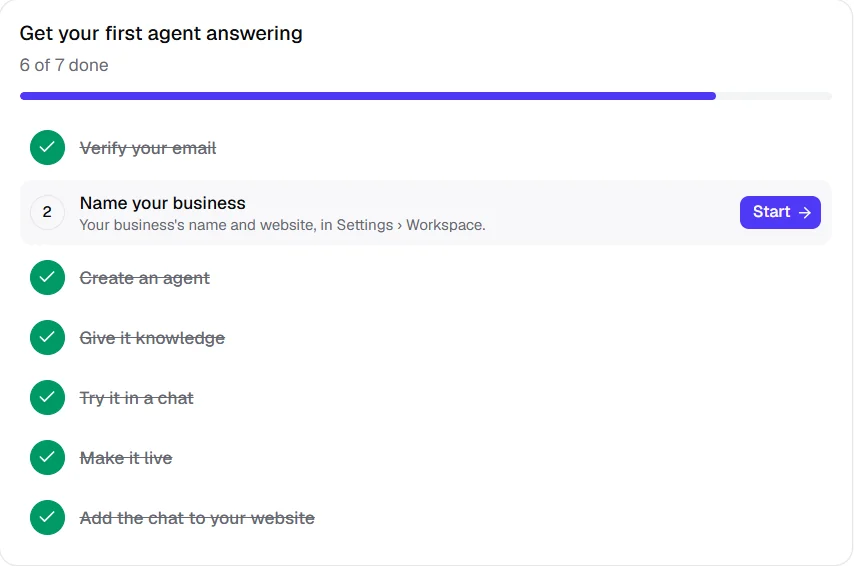
This walks you from a new account to a chat that answers on your website. Home in the app shows the same steps as a checklist, Get your first agent answering, with a Start button on the next one.
1. Create your account
- Go to Create your account. Free needs no card: it includes 50 AI credits a month (about 100 answers).
- Open the email we send and click its link in the browser you're signed in to Aidfolk with (anywhere else, it asks you to sign in first). Until you do, a banner asks you to verify, with Send the link again: you need a verified email to try your agent in a chat and put it live.
- Name your business: in Settings › Workspace, add your business's website. An agent that lists no websites of its own answers there.
2. Create an agent
- Go to Agents › New agent.
- Pick what it's for: Customer support suits most businesses. Picking one fills in its suggested instructions.
- Give it a Name (for example “Website assistant”) and check its Instructions, written like a brief for a new teammate. Visitors can get an agent to repeat its instructions, so write nothing there you wouldn't publish: no passwords, keys or private notes. You can change everything later.
- Click Create agent. It's saved as a draft, and its Knowledge tab opens.
3. Give it knowledge
Your agent answers only from what you give it. Most people start with their website:
- Click Add knowledge and choose Website.
- Type your site's address and click Find pages.
- Choose the pages your agent should read (your help, pricing and policy pages matter most), then Review and Save.
“We're reading it now; it answers in a minute or two.” Files, notes and an FAQ work the same way: which kind to use when.
4. Try it in a chat
Open the agent's Test chat tab and ask the questions your customers ask most. Each answer cites the pages it used. When your content doesn't hold an answer, the agent says so, and you can add the answer on the spot: improve your agent's answers.
5. Make it live
On the agent's Overview, Next steps has Go live. A draft agent answers only in Test chat; once it's live, visitors can chat with it on your websites.
6. Add the chat to your website
In Widget & embed, choose the websites where it answers, copy your chat's code and paste it into your site once. The steps for WordPress, Wix, Shopify, Squarespace, Webflow and any HTML site are in add the chat to your website.
Still stuck? Email support@aidfolk.com and a person will answer.