Invite your team and choose their roles
Invite teammates, choose Admin or Member for each, and see how many people your plan includes.
Plans, credits and team · Updated
Invite someone
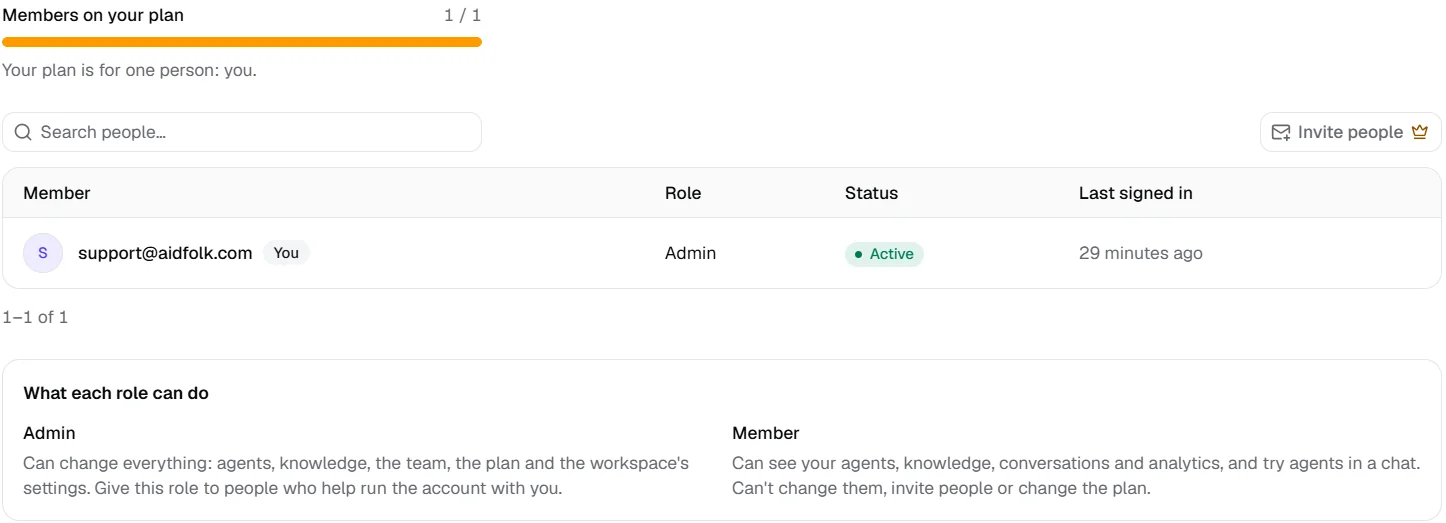
- Go to Settings › Team. Only admins see it.
- Click Invite people, then fill in their Email, First name and Last name.
- Choose a Role (below) and click Send invitation. They get an email to join your workspace.
Members on your plan shows how many places are in use.
Admin or Member
- Admin: can change everything: agents, knowledge, the team, the plan and the workspace's settings.
- Member: can see your agents, knowledge, conversations and analytics, and try agents in a chat. Can't change them, invite people or change the plan.
How many people each plan includes
- Free: 1 person
- Starter: 3 people, with Admin and Member roles
- Pro: 10 people, with Admin and Member roles
Free is for one person, so the Team page says “Your plan is for one person: you.” and inviting comes with Starter.
Still stuck? Email support@aidfolk.com and a person will answer.